
Mods / VS Map Tools
Author: The_Lunarian
Side: Client
Created: May 21st at 11:23 PM
Last modified: Oct 24th at 2:32 PM
Downloads: 998
Follow Unfollow 82
Latest release:
vsmaptools_2.1.0_windows.zip
🗺️ VS Map Tools
! Warning – If you're a MacOS or Linux user, download the latest release on GitHub, as ModDB only accepts a single file per release !
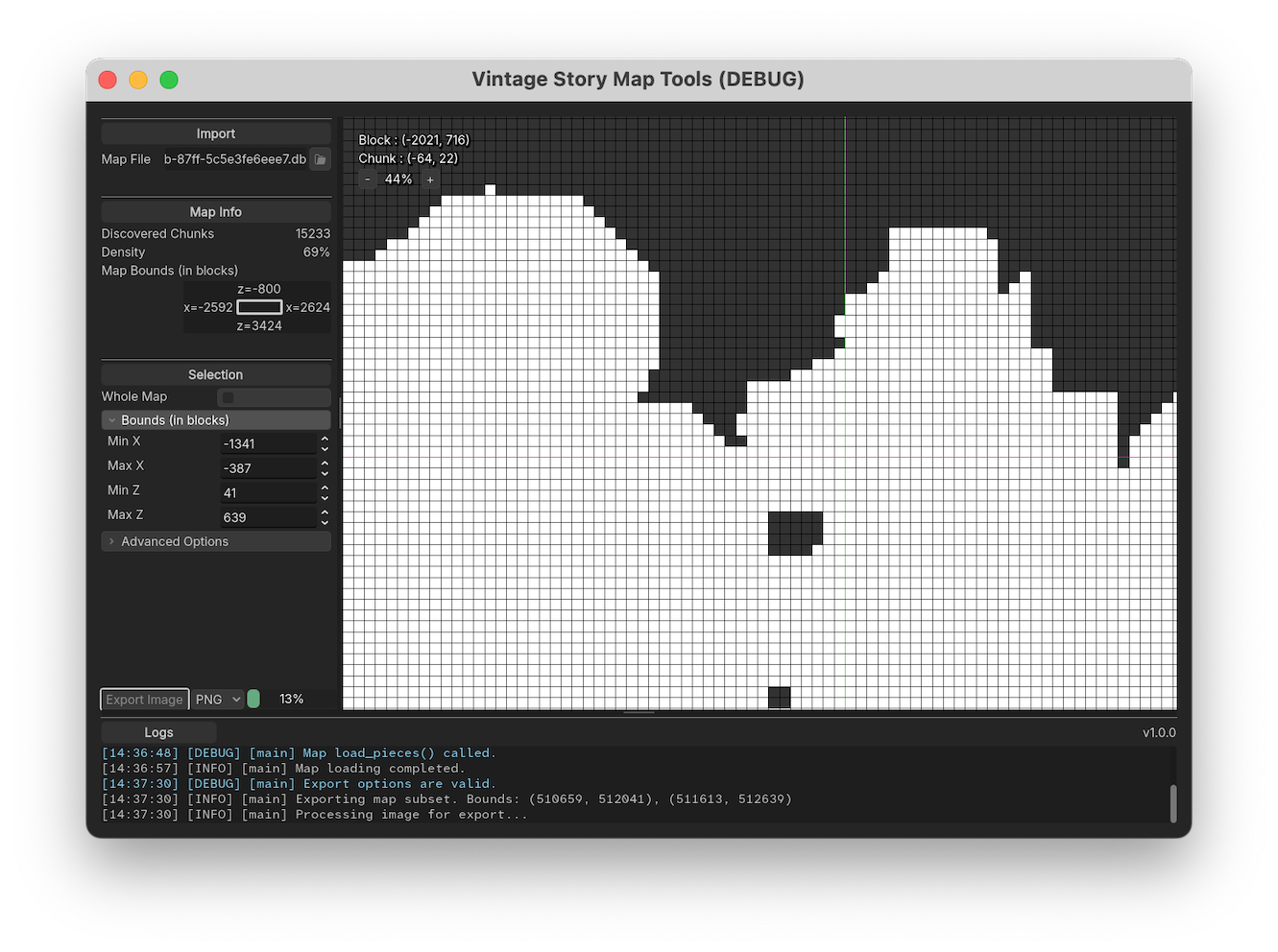
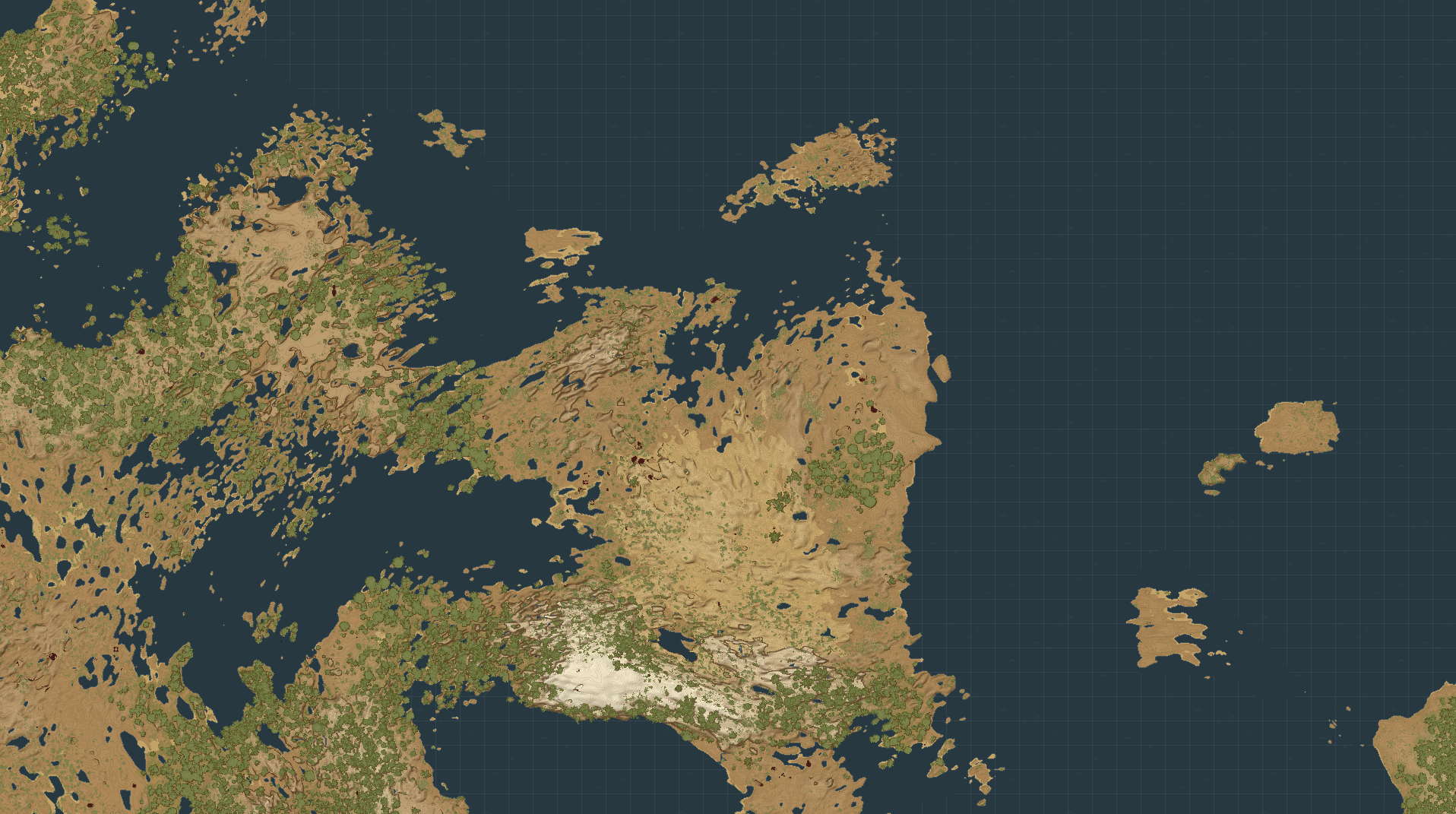
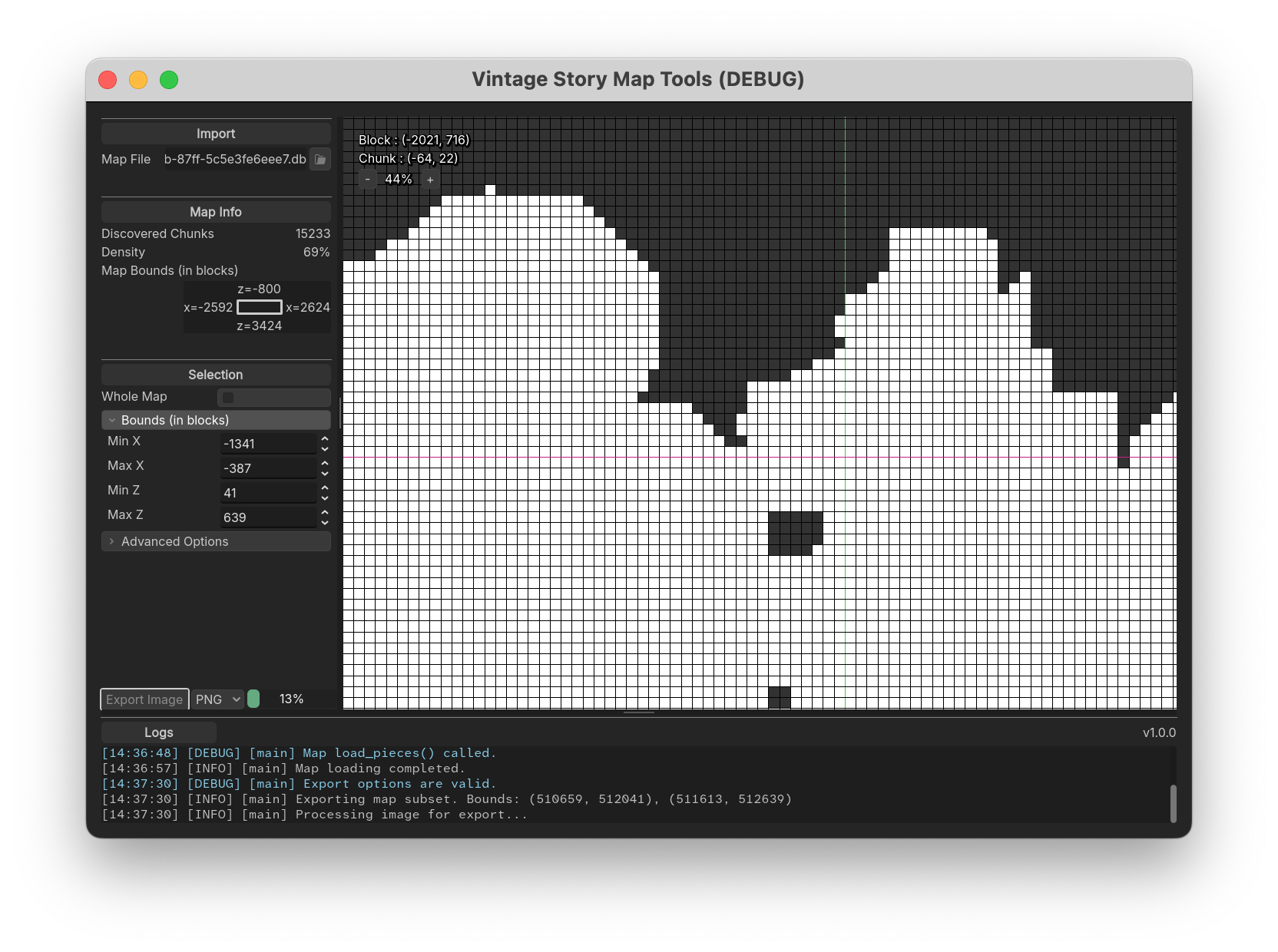
VS Map Tools is a standalone GUI app that reads color data from your Vintage Story client-side minimap, and exports it as a high-resolution PNG image. You can choose to render a specific region using coordinate bounds, or export the entire explored world.
The output is pixel-perfect: each block in the game is mapped to exactly one pixel in the image. No scaling, no blurring, no interpolation.
Compared to Vintage Story Map Exporter, this tool is:
- 💻 Cross-platform (runs on Linux, macOS, and Windows)
- 📏 Not limited to 10,000×10,000 pixels
- 🌍 Can render the whole explored map automatically, no manual bounds needed
- 🧭 Supports relative coordinates (the ones you see in-game)
Preview
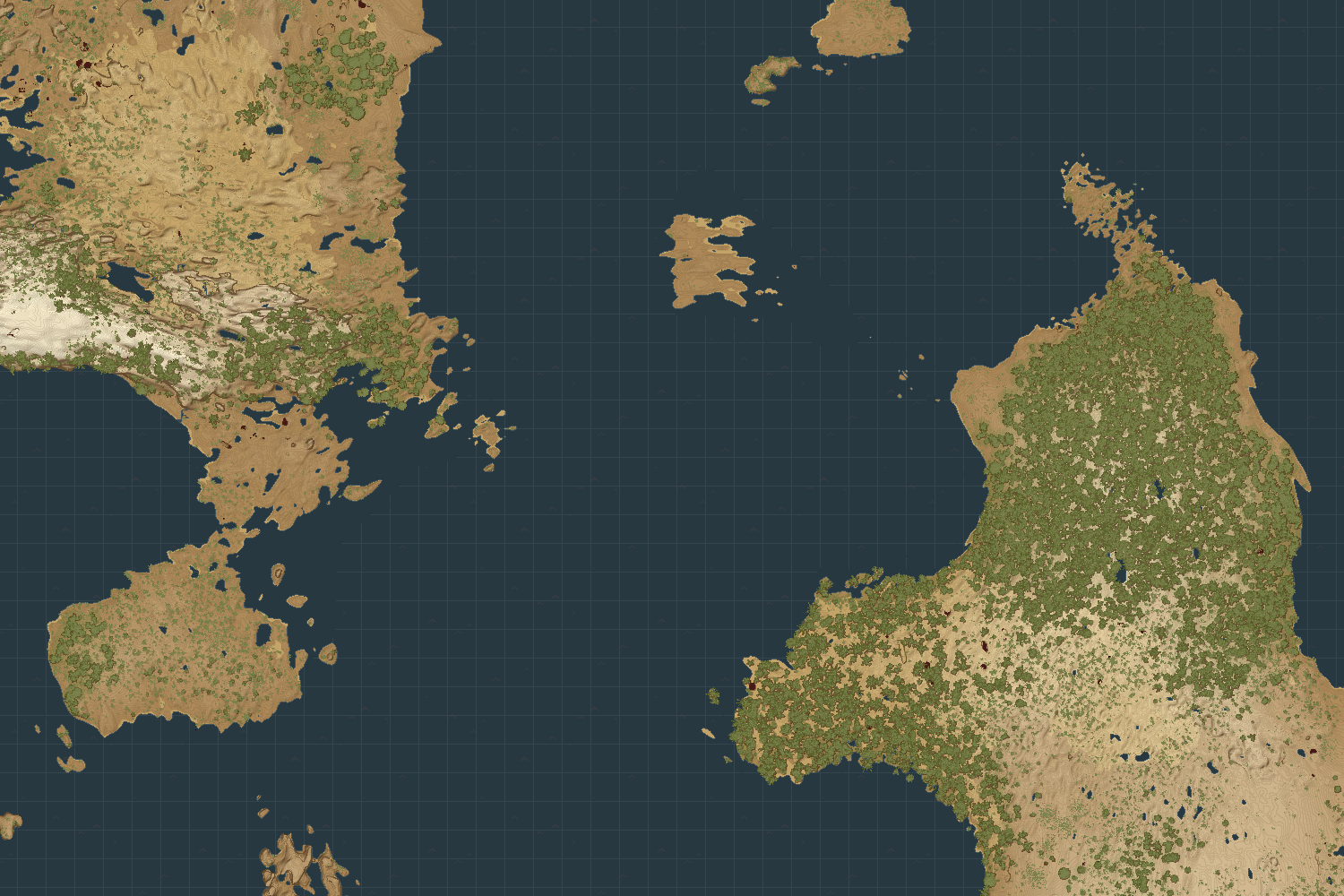
Map colors are from the Medieval Map mod.
Installation
From the Releases page on GitHub, download the latest version corresponding to your operating system.
Roadmap
License
This project is licensed under the MIT License. See LICENSE for details.
| Mod Version | Downloads | Released | Changelog | Download |
|---|---|---|---|---|
| 2.1.0 | 377 | Oct 24th at 2:32 PM | vsmaptools_2.1.0_windows.zip | |
| 2.0.0 | 20 | Oct 23rd at 4:36 PM | vsmaptools_2.0.0_linux.zip | |
|
For Windows and MacOS, see the release page on GitHub. | ||||
Hi, how are you? I'm trying to export an image, and according to the console, it processes correctly (both PNG and JPG), but then when I try to open the JPG image, it doesn't work, and the PNG doesn't appear. Is this a known bug? How do I fix it?
Thank you very much
INFO:
SO: Win11
Soft Version: v2.1.0 last one from github
Log:
[09:15:33] [INFO] [main] Vintage Story Map Tools — v2.1.0
[09:15:33] [INFO] [main] Godot version: 4.4.1-stable (official)— https://godotengine.org
[09:15:33] [INFO] [main] Renderer: NVIDIA GeForce RTX 3060
[09:15:43] [INFO] [main] Loading map file at C:/Users/*****/AppData/Roaming/VintagestoryData/Maps/4cdd0947-4f1a-40f5-9b6b-b1c7413c62cf.db
[09:15:52] [INFO] [main] Map loading completed.
[09:16:08] [INFO] [main] Exporting whole map. Bounds: (505120, 501440), (524224, 522976)
[09:16:08] [INFO] [main] Processing image for export...
[09:22:57] [INFO] [main] Image processing completed.
[09:23:17] [INFO] [main] Saving image to file: D:/Descargas/vsmaptools_2.1.0_windows/windows/vintage_story_map2.jpg
The_Lunarian is there some kind of limit for game map file size?
Because on my main world (which has a lot of area uncovered and in effect is 1.7GB big) it always just exports solid black image no matter what export size I set.
Works as intended on smaller worlds.
The_Lunarian
I know it would be a bit of work to do, but would you consider a vcdbs to map db converter module? I have a decetly sized map save I need to make a map for.
CoZzaBoZza For now you should be able to circumvent the 16k*16k limit by setting manual bounds and doing multiple exports.
Going off previous comments, it's going to be difficult to print a map that's about 53000x13000...
Really should have set equator to be closer.
Edit: Yes it crashed...
CoZzaBoZza I answered you directly on the forum post you made in April. I hope it'll clear things out 🤞
https://www.vintagestory.at/forums/topic/15298-how-do-the-mapdb-files-work
Hey mate, was just wondering how you ended up creating this? I was trying to make one myself but never could get the database to decode...
The_Lunarian - I did end up just spitting out a few maps of areas I cared about and then stopped to await your reply.
Would be awesome if you managed a workaround, but knowing 16k x 16k is the size, for now at least, lets me break it up in a more orderly fashion.
Keep pluggin away, many thanks for your hard work!
Matrokles Crap, I just realized the image is actually limited to 16384×16384...
I'll need to find a way to work around that, maybe splitting images in 16k pieces instead of exporting a single one.
Did you succeed in exporting it as multiple parts, by setting the bounds manually? As you said, you can always stitch the PNGs together after the export.
The_Lunarian - after a certain size my maps stop generating. Maybe a bit over 7mb in jpg. Which admittedly puts it at a very impressive 20k x 9k. so please don't take this as criticism.
Do you know the size limit or is there a way to remove it or get around it perhaps?
Love the work you have done and will piece the maps together myself if necessary but thought I'd ask. Cheers!
Zellith
After the map export process, you get a window asking you where to save the file. So the image is where you put it. And the path is shown in the log.
Where does the GUI store the image it exported? It doesn't seem to tell me. A simple "Open Image File Location" button would be nice.
DUCATISLO Thanks! Have you had a chance to try it out?
gg
Hi Pavadigan !
Sadly there's not an easy way to overlay the waypoints. If I'm not mistaken, they are not stored in the map, which is client-side, but in playerdata inside the world save. For a server, you wouldn't have access to it. For a singleplayer world, I guess you would, but I have no idea how the world save file is structured :\
https://www.vintagestory.at/forums/topic/16110-how-do-i-transfer-my-player-data-from-a-singleplayer-world/#comment-75175
Hi Xaeleus !
How big is the map you're trying to render, from the 6GB world ? Did you set whole_map to true or did you set bounds yourself ?
Laerinok
ok i hate this edit and ping feature it deleted my message
Im still running the process from an hour ago incase it is still orking ill keep it running for a few more hours. 6gb may just take forever.
Xaeleus
I remember waiting for a very long time for a map. The larger the map, the longer it takes. I had suggested adding a progress bar, because it can indeed seem frozen, but it's always working in the background.
I'm almost sure your map was still generating.
So ive run into a limitation i think.
the map fiel im trying to convert is 6GB and when it tries to process, the progress bar seems to never appear. even waiting 5 minutes.
Eluce
This is a quick guide.I hope this could help you.
Installing Python on Windows and Using `requirements.txt` in a Virtual Environment
This guide will walk you through the process of installing Python on a Windows machine, creating a virtual environment, and installing project dependencies from a `requirements.txt` file.
-----
Step 1: Install Python
1.Download the installer:Go to the official Python website and download the latest version for Windows. Be sure to choose the correct version for your system (32-bit or 64-bit).
2. Run the installer: Double-click the downloaded `.exe` file.
3. Crucial step. On the first installation screen, make sure you check the box that says "Add Python.exe to PATH". This will allow you to use Python from the command line without any extra configuration.
4. Complete the installation: Click "Install Now" and follow the prompts.
-----
Step 2: Verify the Installation
1. Open the Command Prompt: Press the Windows key, type `cmd`, and press Enter.
2. Check Python version: In the command prompt, type the following command and press Enter:
python --versionIf the installation was successful, you should see the version number of Python displayed.
-----
Step 3: Create a Virtual Environment
A virtual environment is a isolated space for your project, which prevents conflicts between different projects' dependencies.
1. Navigate to your project directory: Use the `cd` command to move to the folder where you want to create your project. For example:
cd C:\Users\YourUsername\downloads\vsmaptools2. Create the virtual environment: Once inside your project folder, run the following command. This creates a new directory (here, named `venv`) that will contain the virtual environment.
python -m venv venv-----
Step 4: Activate the Virtual Environment
1. Go to (if you are not already in)
C:\Users\YourUsername\downloads\vsmaptools(in fact it is the same as in step 3)2. Activate it: To start using the virtual environment, you need to activate it. The command for this on Windows is:
venv\Scripts\activateYou will know it's active when the command prompt's line is prefixed with `(venv)`.
-----
Step 5: Install `requirements.txt`
The `requirements.txt` file lists all the Python libraries (dependencies) that your project needs.
1. Make sure the file exists: Ensure there is a file named `requirements.txt` in your project directory. It should contain a list of packages and their versions, one per line.
2. Install the dependencies: With the virtual environment active, run the following command to install all the packages listed in your `requirements.txt` file:
pip install -r requirements.txtThis will download and install each package directly into your virtual environment.
-----
Step 6: Run the script
C:\Users\YourUsername\downloads\vsmaptools\python3 vsmaptools.py-----
Step 7: Deactivate the Virtual Environment
When you are done working on your project, you can deactivate the virtual environment.
1. Deactivate: Simply type the following command and press Enter:
deactivateThe `(venv)` prefix will disappear from your command prompt.
By following these steps, you can set up a clean, isolated Python environment for any project, ensuring that your dependencies are managed effectively.
But if you prefer, I've compiled the program into an
.exefile to avoid the need for Python.It should always work. See this post below
Hey there. Thanks for the mod! 😃
I'm having some trouble though. I'm totally new to coding, but I've done step 1 and step 2.
Could you provide more detail on how to do step 3?
It says to install the required python package, but how do you do this with just the line of text?
When I copy and paste that line of text into python, nothing happens. It's probably obvious for coders, but I can't think of what else to do.
Would be grateful for a bit of help on this step. Thanks!
The_Lunarian First of all, Thank you! this works awesome!
Any way to overlay the waypoints from the in game map? What about from mutliplayer server?
Just wanted to say, thank you for making this mod! It works perfectly, and the directions are very straightforward if you read the readme.
Redleg
I've made an exe version if you want. Have a look two comments below.
This is exactly what I was looking for but as a non-python user, this feels like a different language.
Ok, I'm gonna do executable binaries ASAP lol.
Werka eerino
For those interested, here's the Windows executable for the release, along with its VirusTotal scan result. I used the same library that I used for ModsUpdater, so it should not make issues.
Releases: VS_Map_Renderer
Direct link: VS_Map_Renderer_v1.2.1.zip / SHA-256:
5450ba7e888adfd9e7370307ff0c10ac80c7186f03c79522ccfdc8c13f820757(Virustotal scan)Usage is straightforward:
Configuration:
C:\Users\\AppData\Roaming\VintagestoryData\MapsVS_Map_Renderer.exe. This helps prevent potential file corruption issues.f33d92de-dd29-44ef-9d25-1568eb965b9d.db).config.jsonfile with any text editor."map_file": "3a882c23-bb4e-4571-9950-976055ef3673.db". Replace3a882c23-bb4e-4571-9950-976055ef3673.dbwith the name you just copied. - If you only have one map, it's simple: you'll have a single file. Otherwise, you'll need to determine which file corresponds to your game save. (Personally, I rely on the file modification date; the most recent one is usually the world I played last.)Use:
VS_Map_Renderer.exeand wait for the process to complete.VS_Map_Renderer.exefolder, with the name specified in theconfig.jsonfile under the"output"key.Damn, the beginnings of the description gave me the impression I wouldn't need to do much to get the mod working. Every mod I've tried is just too involved for my level of knowledge and patience and time.
Werka
The script is written in Python, a programming language. You need to have Python installed on your PC to use the script.
I just got back, I'm tired. I asked GPT to make a quick guide if that helps. I've checked and fixed some things. I hope I didn"t miss any error...
The_Lunarian
This case perfectly illustrates what we were saying about the necessity of having a binary.
(Feel free to use/modify the guide to suit your needs.)
# Quick Guide: Exporting Maps from .db to .png
This guide will walk you through converting your `.db` map files into `.png` images using a Python script. Don't worry if you're new to Python; we'll cover everything step-by-step.
### 1. Install Python
Python is the language this script is written in. Your computer needs it to run the script.
1. **Download Python:**
* Go to the official Python website: [https://www.python.org/downloads/](https://www.python.org/downloads/)
* Click the "**Download Python X.Y.Z**" button for your operating system (e.g., Windows, macOS).
2. **Run the Installer:**
* Double-click the downloaded file (e.g., `python-X.Y.Z.exe` on Windows).
* **Crucial for Windows:** On the very first screen, **make sure to check the box that says "Add Python X.Y to PATH"** at the bottom. This is essential for the script to work easily.
* Click "**Install Now**" and follow the prompts.
---
### 2. Download the Program Files
Next, get the actual script and its related files.
1. **Download VS Map Renderer:**
* Go to the project's release page (where you originally downloaded it). Look for the "**latest release**" and download the **`.zip` file** (e.g., `vsmaptools-X.Y.Z.zip`).
2. **Extract the Files:**
* **Right-click** the downloaded `.zip` file.
* Select "**Extract All...**" or "**Unzip here.**"
* Choose a folder (e.g., create a new folder on your desktop called `Map_Converter`).
* Inside the extracted folder, you should find `vsmaptools.py`, `requirements.txt`, and `config.json`.
---
### 3. Install Necessary Components (Dependencies)
The script needs a few extra "ingredients" to function. We install these using your computer's "command line" or "terminal."
1. **Open Terminal/Command Prompt:**
* **On Windows:** Click the search icon in your taskbar, type `cmd`, and press **Enter**.
* **On Mac:** Go to "Applications" > "Utilities" > "**Terminal**," or search for "Terminal" with Spotlight (Cmd + Space).
2. **Navigate to the Script's Folder:**
* In the terminal window, type `cd ` (that's `cd` followed by a space).
* Then, **drag and drop the `Map_Converter` folder** you created in Step 2 directly into the terminal window. The full path will appear.
* Press **Enter**.
3. **Install Dependencies:**
* Once you're in the correct folder in the terminal, type or paste the following command and press **Enter**:
```bash
pip install -r requirements.txt
```
* You'll see text scrolling as your computer downloads and installs the required components. Wait until the command line becomes available again (you see the folder path or prompt).
---
### 4. Convert Your Map
Now you're ready to convert your map.
1. **Place Your .db File:**
* Put your **`.db` map file** (the one you want to convert) **into the same folder** as `vsmaptools.py`.
2. **Run the Script:**
* Go back to your terminal window.
* Type the following command and press **Enter**:
```bash
python vsmaptools.py
```
**IMPORTANT:** Replace the 'map_file' value in the config file with the **exact name** of your `.db` file (e.g., `17036cd4-fd1c-4c2b-87ff-5c5e3fe6eee7.db`).
* The script will run. Once it's finished, a new **`.png` image file** (with the name defined in the config file at the 'output' value.) will appear in the same folder.
@Werka Could you please tell me exactly what you didn’t understand or which part was unclear? I’ll do my best to improve it and help you use the tool properly.
Czy mógłbyś dokładnie powiedzieć, czego nie zrozumiałeś lub która część była niejasna? Postaram się to poprawić i pomóc Ci korzystać z narzędzia we właściwy sposób.
Werka to się naumij albo nie korzystaj
2/10 nie rozumieju
Thanks a lot everyone for the feedback and kind words!
Laerinok
Nicklos
Thanks for trying it out! In version 1.2.1, the script now prints the target image size before attempting to allocate memory, so it’s easier to debug this kind of issue.
For reference: on my 2013 MacBook (8 GB RAM), I can generate up to ~100,000 × 100,000 px images before the OS itself kills the process (I don't get the MemoryError from Python like you do). If your map is even larger, that would explain the issue.
At that point, a single PNG might not even be usable by image viewers or web browsers. I’m considering adding an option to render one pixel per chunk (32×32 blocks), which would massively reduce image size while still giving a useful overview.
Nicklos
A MemoryError typically happens when the requested image is too large for your system's available RAM.
I guess you have a big map...
Possible Solutions:
Traceback (most recent call last):
File "vsmaptools.py", line 330, in <module>
main()
File "vsmaptools.py", line 281, in main
image = Image.new("RGB", (bounds.width, bounds.height))
File "PIL\Image.py", line 3108, in new
return im._new(core.fill(mode, size, color))
MemoryError
Struck out trying to map the world at once unfortunately.
Salut !
Beau projet bien pratique 😀
I just tested it and I like the result. A nice map. I agree with the comment below; I think the Python script will deter many users. A binary would be useful.
A small suggestion perhaps: "Loading map pieces" and "Processed" take a relatively long time (depending on the map size). I expected this, it's logical, but it gives the impression of a freeze. Maybe indicate more explicitly that this is normal and that it's working in the background.
And a question/request: Is it possible to have an option to add map markers? I don't know if they are accessible, but having also an annotated version as an option would be a plus.
SiiMeR
Thanks a lot! Your codebase was a great reference when figuring out the structure of the DB, so kudos for blazing the trail. 😁
As for prebuilt binaries, I haven’t made a decision yet... But I totally agree it would help make the tool more accessible. I’ll definitely keep it in mind depending on how many users ask for it.
Excellent. I was wondering when you'd finish this :D
Will there be an option to download a prebuilt binary in the future? I feel like that would help this tool reach a wider audience.